
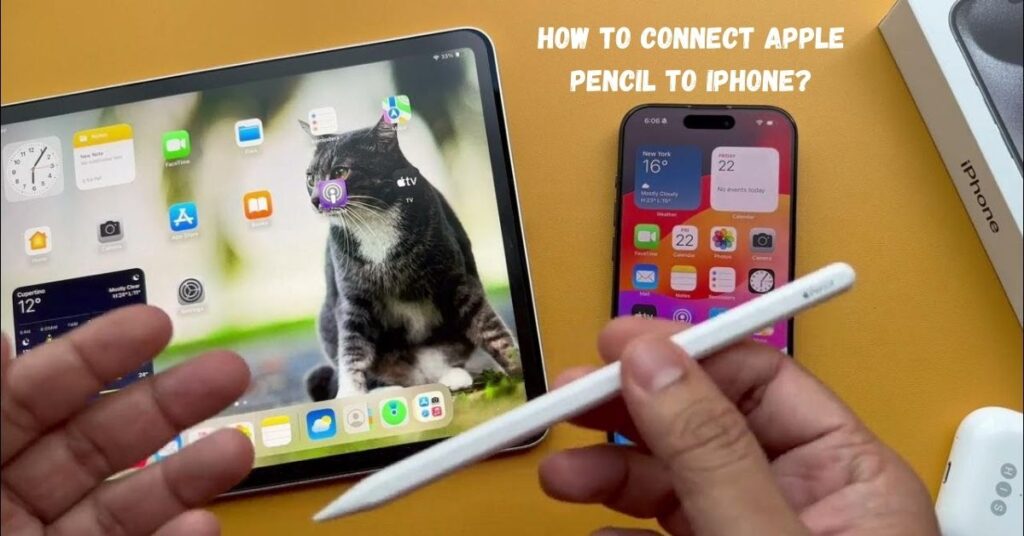
The Apple Pencil is a powerful stylus made for iPad models. Many users ask about using the Apple Pencil for the iPhone. The answer is simple. Apple Pencil does not work on any iPhone touchscreen. iPhones lack the required special display hardware. The iPhone screen only supports basic capacitive stylus input.
You can use a third-party stylus or passive stylus on the iPhone. These work like a finger. They do not offer pressure sensitivity. The Apple Pencil needs Pencil compatibility found only in supported iPads, like iPad Air and iPad Pro.
Apple Pencil Device Limitations
The Apple Pencil device limitations are clear. It works only on supported iPads. iPhones cannot use it because they lack special display hardware. Only iPad Pro and iPad Air models allow full Pencil compatibility. Older first generation iPads also work, but with fewer features. The iPhone touchscreen does not support active stylus input.
You can try a third-party stylus on the iPhone, but it is only a passive stylus. The Apple Pencil cannot detect pressure or tilt on the iPhone. Its stylus support is limited to iPads. Drawing apps work best on iPad devices.
Alternatives to Apple Pencil on iPhone
The Apple Pencil does not support any iPhone models. Many users look for alternatives to the Apple Pencil on the iPhone. A third-party stylus is the best option. These are also called capacitive styluses. They work on the iPhone touchscreen. Popular choices include Adonit Pro, Adonit Note+, and Wacom Bamboo Stylus.
These tools act as a passive stylus. They do not need pairing. They work with most iOS devices. You can use them for notes, scrolling, and light drawing. They lack pressure sensitivity and advanced stylus support.
iPhone Touchscreen Technology
The iPhone touchscreen technology uses a capacitive screen. It detects finger touch quickly. The iPhone screen is smooth and responsive. It does not support an active stylus like Apple Pencil. Apple designs the screen for direct touch input. The display lacks special display hardware needed for Pencil use. Most iPhone models support only a passive stylus.
These include third-party styluses and capacitive pencils. They work like a finger. The screen technology focuses on speed and accuracy. It works well for daily tasks, typing, and scrolling. Advanced stylus support remains limited on iPhones.
Third Party Stylus Options
Third party stylus options are useful for iPhone users. The Apple Pencil does not work on iPhones. A third-party stylus uses capacitive screen technology. These are also called passive stylus tools. Popular choices include Adonit Pro, Adonit Note+, and Wacom Bamboo Stylus. They work on most iPhone models and iOS devices.
These styluses do not need Bluetooth pairing. They act like a finger on the iPhone touchscreen. They are good for notes, scrolling, and simple drawing. Advanced stylus support like pressure control is not available.
Why Does the Apple Pencil Fail?
The Apple Pencil fails on iPhone for clear reasons. It is made for supported iPads only. iPhones do not have the required special display hardware. The iPhone touchscreen uses a basic capacitive screen. Apple Pencil needs stylus support and Pencil compatibility. These features exist on iPad Pro and iPad Air models.
The iPhone screen cannot detect pressure or tilt input. This limits active stylus use. A third-party stylus or passive stylus works instead. These options copy finger touch. They lack precision and pressure sensitivity. Apple designed iPhones for touch, not advanced drawing tools.
iPad Versus iPhone Stylus
The iPad versus iPhone stylus difference is clear. The Apple Pencil works only on iPad models. iPads have special display hardware. This allows full stylus support. The iPhone touchscreen uses a simple capacitive screen.
It supports only a passive stylus. The iPad Pro and iPad Air support active stylus input. They detect pressure and tilt. iPhones cannot do this. A third-party stylus works on an iPhone. It acts like a finger. iPads offer better Pencil compatibility for drawing, notes, and creative apps.
Future Apple Stylus Support
Future Apple stylus support may change with new devices. Many users hope for Apple Pencil support on the iPhone. Apple may upgrade the iPhone touchscreen design. This could include special display hardware. Better screen technology can improve stylus support.
Current iPhone models use a capacitive screen only. That limits active stylus use. Apple already supports Pencil on iPad Pro and iPad Air. Future new iPhone versions may add better Pencil compatibility. Until then, a third-party stylus or passive stylus remains the best option for iPhone users.
Conclusion
The Apple Pencil is made for iPad models only. It cannot work on any iPhone touchscreen. iPhones lack the needed special display hardware and Pencil compatibility. Users can try third-party styluses or passive stylus options. These work on most iPhone models but lack pressure sensitivity and active stylus support.
iPad Pro and iPad Air remain the best devices for Apple Pencil use. Future Apple stylus support may improve with new iPhone models, but for now, iPads provide full stylus support, drawing apps, and creative tools for precise work.
FAQ’s
Is pressure sensitivity available on an iPhone stylus?
No. Only iPad Pro or iPad Air support pressure-sensitive drawing tools.
What iPads support Apple Pencils?
iPad Pro, iPad Air 5th Gen, and supported iPad models allow full Pencil support.
Can future iPhones support Apple Pencil?
Possibly. Apple may upgrade iPhone touchscreen technology to allow active stylus use.
Can I take notes with a stylus on my iPhone?
Yes. Third-party styluses work for notes, scrolling, and light drawing.
Are third-party styluses safe for the iPhone?
Yes. They are capacitive styluses, compatible with iOS devices and safe for touchscreens.