


Buying a laptop used to mean picking whichever machine had the biggest number on the box. That approach doesn’t really work anymore. Processors have split into different architectures, batteries last far longer than they did a few years ago, and even midrange machines now come with dedicated AI chips. If you’re shopping for a laptop to handle spreadsheets, essays, coding, or video calls, the smarter move is matching the hardware to what you’ll actually do with it, not chasing the highest spec sheet you can afford.
Start With the Processor, Not the Marketing

The processor still does most of the heavy lifting, but which type you need depends on the software you run daily.
x86 Chips: Intel and AMD
Intel Core Ultra and AMD Ryzen chips run on the older, more established x86 architecture. That means they work with pretty much every Windows program out there, including enterprise tools and specialized academic software. AMD’s Ryzen line tends to handle multi-core tasks well and pairs it with decent integrated Radeon graphics, so it’s a solid pick if you’re doing light creative work on a budget. Intel’s Core Ultra chips generally edge ahead on single-core speed and Thunderbolt support, which matters if you connect a lot of peripherals.
ARM Chips: Apple and Qualcomm
Apple’s M-series and Qualcomm’s Snapdragon X processors run on ARM architecture instead. The tradeoff here is interesting: these chips sip power, run cool, and can push battery life past fifteen or twenty hours in normal use. The catch is compatibility. If your work depends on engineering software like AutoCAD, SolidWorks, or ANSYS, you’ll still need an x86 Windows machine, since those programs don’t run natively on ARM.
Memory and Storage: What’s Actually Enough
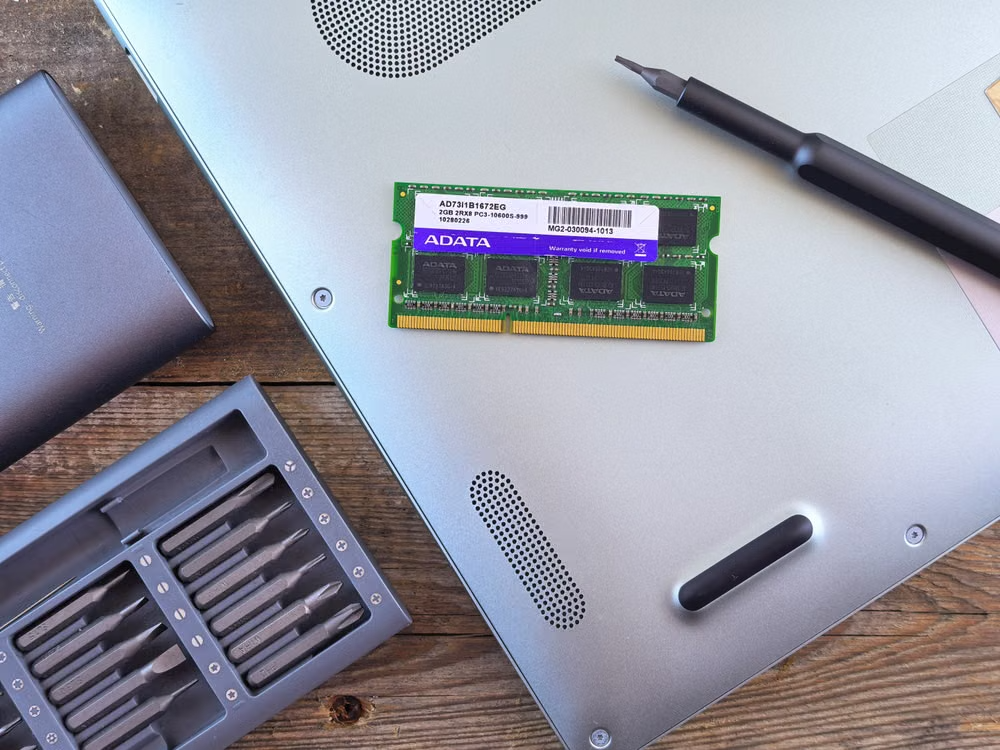
RAM and SSD speed decide how a laptop feels once you’ve got ten browser tabs, a video call, and a document editor open at once.
- 16GB of LPDDR5 or DDR5 RAM is the realistic minimum now. Anything less, and you’ll notice lag the moment you multitask.
- 8GB configurations struggle badly under video conferencing or heavy browser use, so avoid them if you can.
- 32GB makes sense if you’re rendering 3D models, running virtual machines, or doing serious engineering work.
- For storage, 512GB of NVMe SSD space is a sensible starting point. It gives you room for updates, project files, and app caches without constantly deleting things.
- 256GB fills up fast. 1TB suits anyone working with large media files or big datasets.
Screen Size and Quality Matter More Than You Think

You’ll stare at this screen for hours, so it’s worth getting right. A 14- to 15.6-inch panel with Full HD (1920×1080) or WUXGA (1920×1200) resolution gives you sharp text without draining the battery unnecessarily. OLED panels look fantastic and produce deeper contrast, but a matte IPS display is usually the better call in bright offices or classrooms, since it doesn’t reflect glare the way glossy screens do.
On-Device AI and NPUs, Worth Caring About?

Most new laptops now include a Neural Processing Unit, or NPU, built specifically to handle background AI tasks. Microsoft’s Copilot+ standard requires at least 40 TOPS (trillion operations per second) to qualify. In practice, this chip takes over jobs like real-time transcription, noise cancellation during calls, and camera framing, freeing up your CPU and GPU so they don’t overheat or drain the battery as fast. It’s a genuinely useful addition if you spend a lot of time in video meetings.
Build Quality and Repairability
Think about how long you actually plan to keep this laptop. Thinner, lighter designs often solder the RAM directly to the motherboard, which keeps the machine slim but means you can’t upgrade it later. If you want a device that lasts four or five years, look for models with a replaceable M.2 storage slot or a chassis built with repairs in mind, rather than one sealed shut for the sake of thinness.
Budget Tiers Explained
Setting a budget before you shop saves a lot of second-guessing later.
- Under $500: Fine for browsing, streaming, and basic documents, though you’ll notice weaker displays and flimsier chassis.
- $500–$800: The sweet spot for most people. Expect current Core i5 or Ryzen 5 chips, 16GB RAM, 512GB SSDs, and reasonably sturdy builds.
- $800–$1,500: Aimed at professionals and specialized students. This tier brings premium ultrabook designs, sharper color-accurate screens, NPU support, and sometimes an entry-level discrete GPU like an RTX 4050 or 4060.
- Above $1,500: Built for mobile workstations, heavy 3D rendering, or gaming hybrids that need serious thermal headroom.
Weight, Battery Life, and Ports for People on the Move
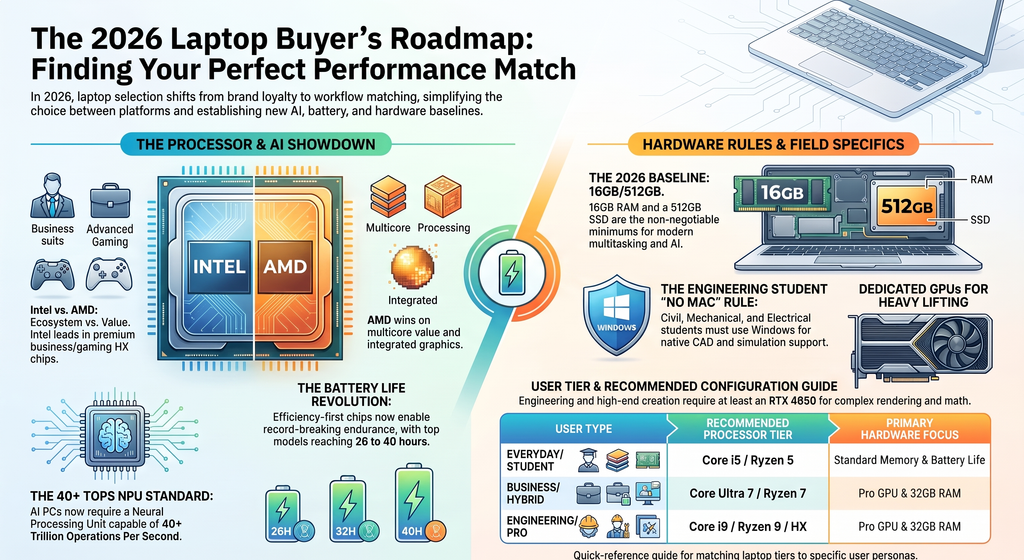
If you’re carrying this laptop between a desk, a lecture hall, and a coffee shop, weight adds up fast. Aim for something under 1.7 kg (3.7 lbs) so it doesn’t weigh down your bag. Battery life varies a lot by category too. Gaming laptops often burn through their charge in three to five hours, while thin productivity machines now regularly last twelve to twenty hours on video playback or office work.
Ports matter more than people expect until they’re stuck without one. Look for:
- At least two USB-C ports with Power Delivery and DisplayPort support
- One full-size USB-A port for older accessories
- An HDMI port for external monitors
- A standard audio jack
Standardized USB-C charging is a small thing, but not having to carry a separate charging brick for every device makes travel noticeably easier.
Making the Final Call
There’s no single best laptop, only the right one for what you actually do. If you work in an office, study humanities, or handle admin tasks, a $500–$800 machine with a Core i5 or Ryzen 5, 16GB RAM, and a 512GB SSD will serve you well for years. If you’re in STEM, software development, or content creation, spend more on a Core i7 or Ryzen 7 with 32GB RAM, 1TB storage, and dedicated graphics. Whatever you choose, prioritize a comfortable screen, solid battery life, and enough ports, since those are the details you’ll actually notice every single day.
Read More